How to Encrypt PDF Files Online: A Complete Security Guide
Parth Soni
Editorial Team
At a Glance
Protect your sensitive documents with industry-standard AES-256 encryption. Learn how to set user and owner passwords, manage permissions, and secure your data online.
In an era of data breaches and cyber espionage, sending an unprotected PDF is like mailing a postcard: anyone who handles it can read it. Whether it's a bank statement, a legal contract, or personal ID, encrypting your PDF is the only way to ensure only the intended recipient can view it.
Why Standard Password Protection Isn't Enough
Not all "password protection" is created equal. Older PDF versions used weak encryption that modern computers can crack in seconds. You need AES-128 or AES-256 encryption.
Weak Encryption (RC4)
Found in older PDF editors (pre-2010). Can be brute-forced by amateur hackers in minutes using free online tools.
Strong Encryption (AES-256)
The industry standard. Used by banks and the military. It would take a supercomputer millions of years to crack a strong password secured with AES-256.
Client-Side Encryption: The Ultimate Privacy
Most online PDF tools require you to upload your file to their server to add a password. This is a massive security risk. What if the server gets hacked?
vs
Our tool uses Client-Side Encryption. Your PDF never leaves your device. The encryption process happens right here in your browser. We couldn't see your file or your password even if we wanted to.
- Zero Server Uploads
- Instant Processing (No Download Time)
- 100% GDPR & CCPA Compliant
How to Create an Unbreakable Password
Encryption is only as strong as the password protecting it. "Password123" on an AES-256 file is still "Password123".
Length is Key
A 12-character password is exponentially harder to crack than an 8-character one.
Avoid Dictionary Words
Hackers use "Dictionary Attacks". Avoid common words like "Secure", "Admin", or "Document".
Mix It Up
Use Uppercase, Lowercase, Numbers, and Symbols (!@#$).
Don't Reuse Passwords
If your email password gets leaked, hackers will try it on your PDFs too.
3 Common Encryption Mistakes to Avoid
1. Emailing the Password
Never send the password in the same email as the encrypted PDF. If the email is intercepted, the hacker has both the lock and the key. Send the password via a different channel (e.g., SMS, WhatsApp, or Signal).
2. Using Personal Info as Passwords
Avoid using your company name, birth date, or "Invoice2024". These are the first things brute-force algorithms guess. Use a random string of characters.
3. Forgetting the Master Password
There is no "backdoor" in AES-256 encryption. If you lose the password, the data is gone forever. Use a Password Manager to store your credentials securely.
Step-by-Step Guide to Encrypting Your PDF
Select Your File
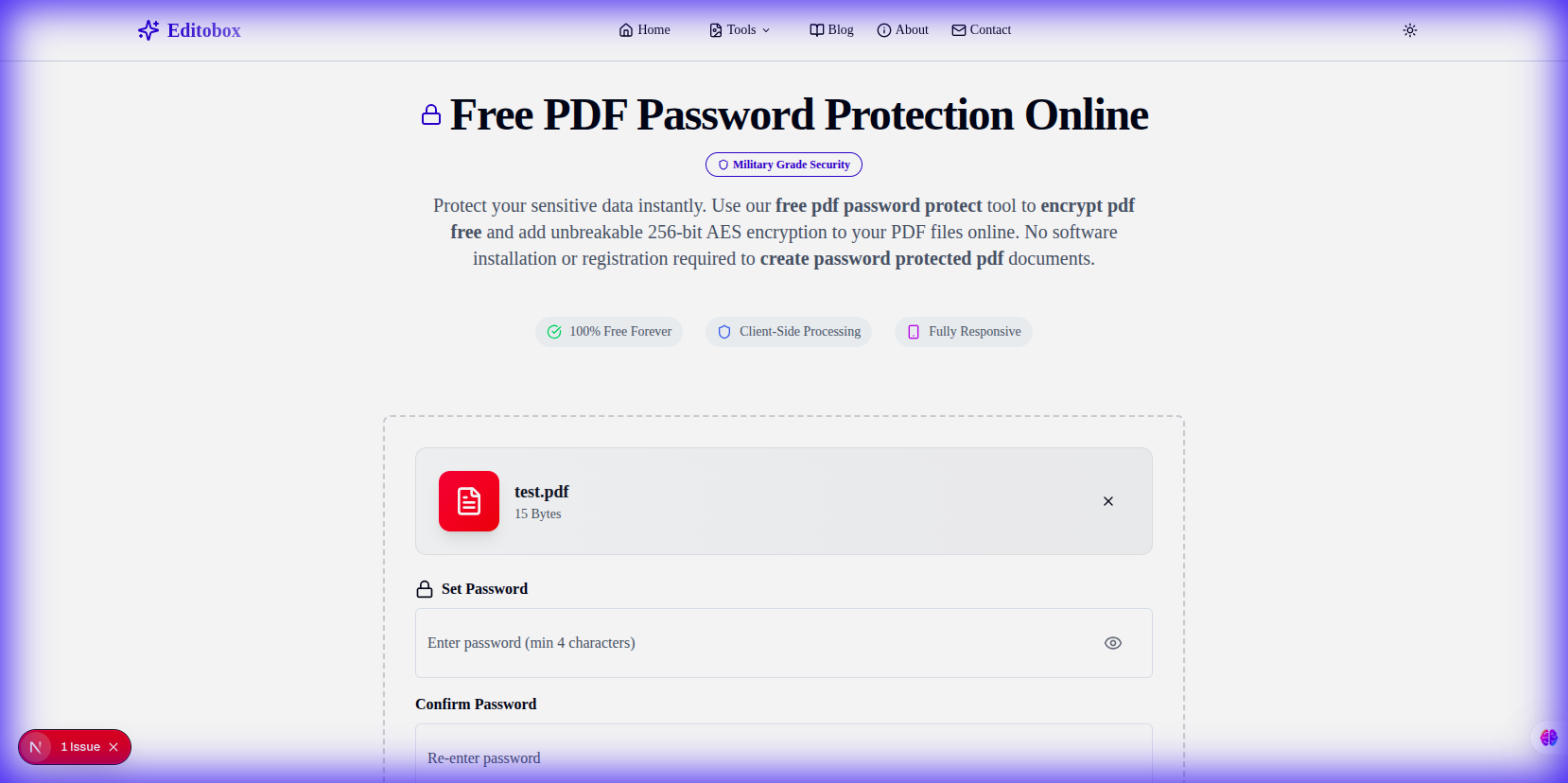
Drag and drop your PDF into our tool. Remember, it stays in your browser.
Choose a Strong Password
Enter your password twice to confirm. Make sure to remember it—there is no "Forgot Password" link for encrypted PDFs!
Download Protected File
Click "Encrypt PDF". Your new file will be ready instantly. The original file remains untouched on your computer.
Frequently Asked Questions
Q1What is the difference between a User and Owner password?
A User password (or document open password) is required to open the file. An Owner password (or permissions password) is required to change security settings or restrict features like printing and editing.
Q2What encryption standard does Editobox use?
We use industry-standard 128-bit and 256-bit AES encryption, which is considered highly secure and recommended for protecting sensitive financial or legal documents.
Q3Can I remove the encryption later?
Yes, if you have the owner password, you can remove the security settings using our PDF Decrypt tool.
Ready to Secure Your Documents?
Don't leave your sensitive data exposed. Encrypt your PDF with military-grade AES-256 security in seconds.
Encrypt PDF NowParth Soni
Lead Developer & Tool Expert
Parth is the lead developer at Editobox with over 8 years of experience in digital imaging and document processing systems.
Think this guide could help someone else?
Spread the knowledge. Sharing takes seconds and helps us keep our tools free forever.