DPI vs PPI: What Is the Difference and Why It Matters
Parth Soni
Editorial Team
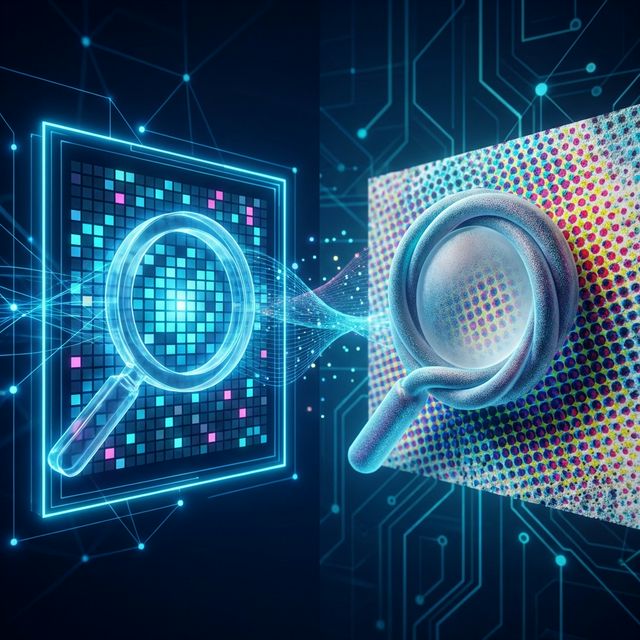
At a Glance
Demystifying digital resolution. Understand when to use Dots Per Inch (DPI) for print and Pixels Per Inch (PPI) for screens to ensure perfect clarity.
It is one of the most common questions in digital imaging: "Can you make this logo 300 DPI?". But what does that actually mean? And why does a 300 DPI image sometimes look pixelated, while a 72 DPI image looks sharp? Let's demystify the acronyms.
The Core Abbreviations
The Core Abbreviations
PPI
Pixels Per Inch
For Screens. This measures the density of glowing squares (pixels) on a digital display.
- Controls screen sharpness
- Fixed by image dimensions
- Irrelevant for printing
DPI
Dots Per Inch
For Printers. This measures the density of physical ink dots a printer sprays onto paper.
- Controls print quality
- Set in metadata
- Crucial for physical size
The "Viewing Distance" Factor
Why do billboards look great from the highway, but blurry if you climb up and look at them? It is all about viewing distance. You do not need 300 DPI for everything.
Handheld Items (Brochures, Business Cards)
Viewed at 10-12 inches. Eyes can see fine detail. Max quality needed.
Posters & Flyers
Viewed at 3-5 feet. Lower density is acceptable.
Billboards & Banners
Viewed at 50+ feet. Huge pixels, but they blend together from far away.
The "72 DPI" Myth
For decades, the standard for web images was 72 PPI. This originated from the original Apple Macintosh screens in the 1980s.
Here is the truth: Modern screens are much denser. A standard laptop is around 120-140 PPI. An iPhone "Retina" display is 460+ PPI.
Crucial Concept
Browsers ignore metadata DPI. If you upload a 1000px wide image to a website, the browser displays 1000 pixels. It does not care if the file says "72 DPI" or "3000 DPI". The metadata is irrelevant for web display.
When DPI Matters: The Print Equation
Physical size (Inches) and Digital Size (Pixels) are linked by DPI. The formula is simple:
Let's say you want to print a 4 x 6 inch photo.
- Low Quality
Printing at 72 DPI
4" × 72 = 288 pixels.
Result: Blurry, blocky print. Looks like "Minecraft". - High Quality
Printing at 300 DPI
4" × 300 = 1200 pixels.
Result: Crisp, professional photo. Standard for magazines.
Vector vs. Raster: The Resolution Exception
Everything we have discussed so far mainly applies to Raster images (JPG, PNG, TIFF) which are made of fixed pixels. But there is another way.
Raster (Zoomed In)
Vectors (SVG, AI, EPS)
Vector graphics do not use pixels. They use mathematical formulas (curves and lines). This means they have Infinite DPI. You can print a vector logo on a business card or a stadium blimp, and it will remain perfectly sharp.
Always use vectors for logos and text when possible.
How to Change DPI/PPI
Note: Increasing the DPI setting in metadata without adding more pixels (resampling) will simply make the print size smaller. To print large AND high quality, you need a high-resolution source image.
Using Photoshop
Image > Image Size. Uncheck "Resample" to see the physical size change as you adjust DPI. Check "Resample" to actually add pixels.
Using Editobox (Free)
Our tools allow you to explicitly set the DPI metadata for your JPG/PNG files before downloading, ensuring your printer reads them correctly.
Parth Soni
Lead Developer & Tool Expert
Parth is the lead developer at Editobox with over 8 years of experience in digital imaging and document processing systems.
Think this guide could help someone else?
Spread the knowledge. Sharing takes seconds and helps us keep our tools free forever.